Is your SharkClean app saying 'Robot Offline'? Learn how to stabilize your robot's connection, fix 5GHz network issues, and stay connected.
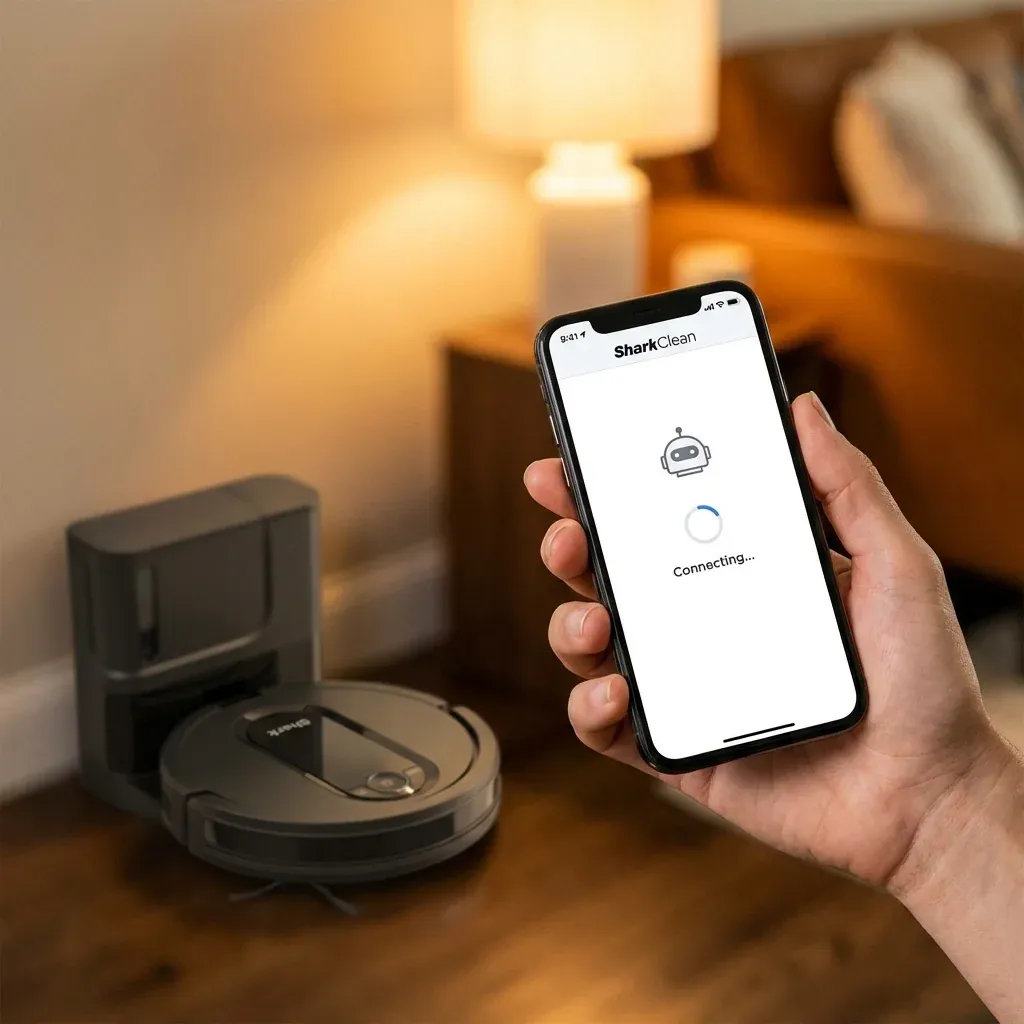
For a smart vacuum like the Shark IQ or AI, Wi-Fi isn’t just a luxury—it’s how the robot receives its maps and updates. When the connection drops, you lose the ability to schedule cleanings or use “No-Go Zones.”
Is your SharkClean app saying ‘Robot Offline’? Learn how to stabilize your robot’s connection, fix 5GHz network issues, and stay connected.
- Symptoms: App says ‘Robot Offline’, Robot stops cleaning when it moves too far from the router, Unable to complete the initial pairing process, Wi-Fi icon on the robot is flashing red or off
- Tools: Smartphone, Wi-Fi Router Password
- Difficulty: Medium
If your robot is constantly showing as “Offline” in the app, the problem is usually with your home network settings rather than the robot itself. Follow these four steps to get back online.
1. The 2.4GHz Network Rule
This is the most common reason for Wi-Fi failure. Shark robots cannot connect to 5GHz Wi-Fi networks. They require a 2.4GHz signal because it travels better through walls and over longer distances.
- The Fix: Check your phone’s Wi-Fi settings. If you are connected to a network named “MyHome_5G,” switch to the standard “MyHome” network before trying to pair the robot. If your router has “Smart Connect” (one name for both speeds), you may need to temporarily disable it in your router settings to let the robot find the 2.4GHz band.
2. Relocate the Charging Dock
The charging dock (the base) is where the robot spends 90% of its time. If the dock is in a “dead zone”—like a basement or behind a heavy metal cabinet—the robot will struggle to sync.
- The Fix: Move the dock to a central room within 15 feet of your Wi-Fi router. Ensure there are no large appliances (like refrigerators or microwaves) directly between the dock and the router, as they cause heavy interference.
3. Clear the App Cache and Reset
Sometimes the SharkClean app itself is the bottleneck, holding onto old connection data.
- The Fix:
- Force-close the SharkClean app on your phone.
- Toggle the Bluetooth on your phone OFF and then back ON.
- Restart your phone.
- Open the app and see if the robot reconnects automatically.
4. The “Forget and Re-pair” Method
If nothing else works, you must force a fresh handshake between your router and the robot.
- In the SharkClean app, go to Settings and select Delete Robot.
- Turn the robot’s physical power switch to OFF for 30 seconds, then back ON.
- Hold down the Dock and Max (or Clean) buttons on the robot simultaneously until the Wi-Fi light flashes.
- Follow the in-app instructions to set up the robot as if it were brand new.
Wi-Fi Icon Meanings
| Icon Status | Meaning |
|---|---|
| Solid White | Connected perfectly |
| Flashing White | Searching for signal |
| Solid Red | Wrong password or IP error |
| Off | Wi-Fi radio is disabled |
TIP: If you have a very large home, consider a Wi-Fi Mesh System or a range extender. However, ensure the range extender has a unique name (SSID) so the robot doesn’t get confused between the main router and the extender as it moves across the house.