Is your Roomba sitting on the dock but staying dead? Learn how to clean charging contacts and reset the battery to fix charging failures.
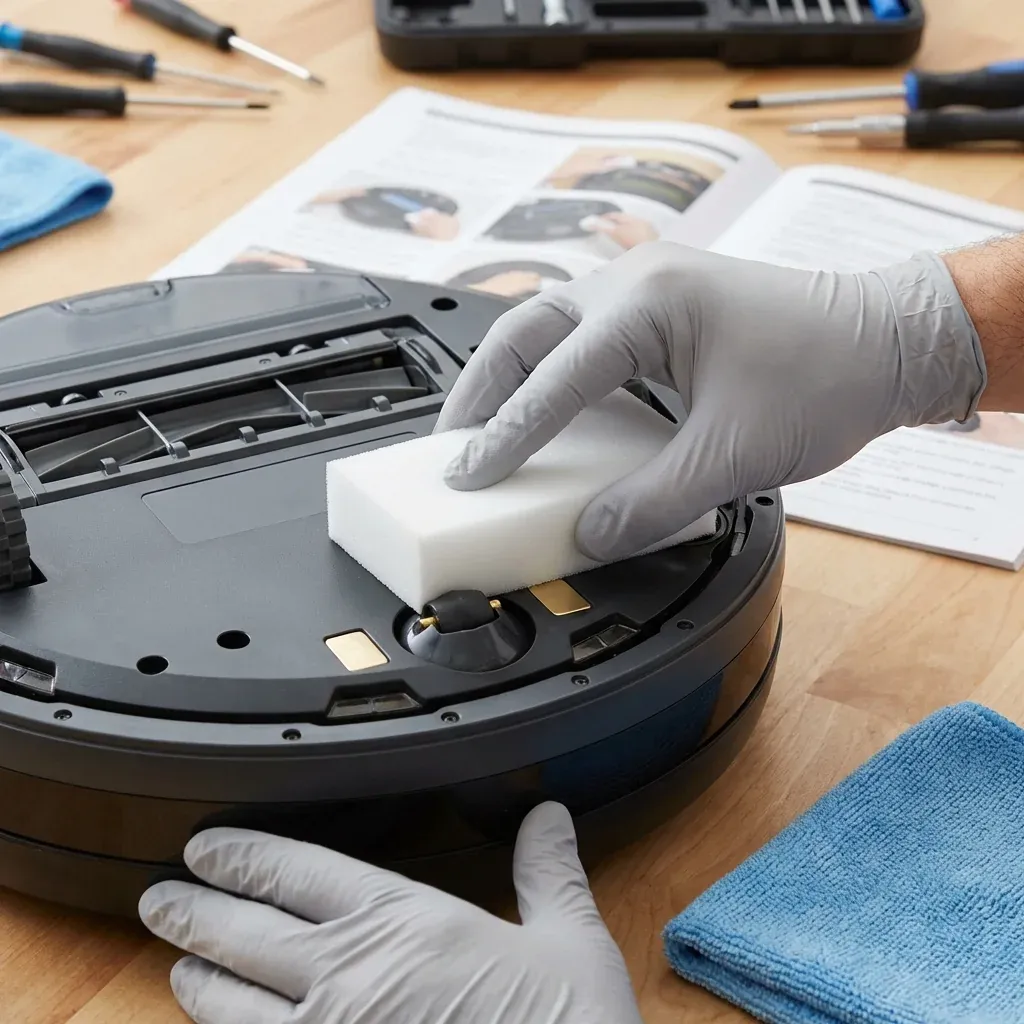
It’s frustrating to find your Roomba dead when you need it to clean. In 90% of cases, a “not charging” issue is caused by simple oxidation on the metal contacts rather than a dead battery.
Is your Roomba sitting on the dock but staying dead? Learn how to clean charging contacts and reset the battery to fix charging failures.
- Symptoms: Roomba does not turn on, Red battery icon on dock, Charging errors
- Tools: Magic Eraser / Rubbing Alcohol, Microfiber cloth
- Difficulty: Easy
Step 1: Clean the Metal Charging Contacts
Dust and floor wax can build up on the two silver/brass squares underneath the robot and the two pins on the Home Base.
- Unplug the Dock: Safety first.
- Use a Magic Eraser: Lightly scrub the contacts on both the robot and the dock until they are shiny.
- Wipe with Alcohol: If you don’t have a Magic Eraser, a microfiber cloth with a drop of rubbing alcohol works well.
- Dry Thoroughly: Ensure everything is dry before plugging the dock back in.
Step 2: Check the Dock Placement
The Roomba needs a clear path to align its contacts perfectly.
IMPORTANT: Safety Tip: Place the dock in a corner or against a wall where the power cord won’t be a tripping hazard. If you have mobility issues, ensure the dock is in a well-lit area so you can easily see it.
- Ensure the dock is on a hard, level surface (not thick carpet).
- Check that the power cord is pushed all the way into the dock and the wall outlet.
- Ensure there are no stickers or tape on the IR sensor “window” on the front of the dock.
Step 3: The “Pull the Pins” Hack (Older Models)
If you have an older 600 or 800 series Roomba, the pins on the dock can sometimes lose their “springiness.”
- Unplug the dock.
- Use a small screwdriver to gently pull the two metal pins slightly upwards.
- This ensures they make firm contact with the bottom of the robot.
Step 4: Reset the Battery
Sometimes the battery logic gets confused (common after a power outage).
- Reboot: Hold the CLEAN button for 20 seconds.
- Deep Charge: Manually place the robot on the dock and leave it for 16 hours without touching it. This allows the battery to perform a “refresh” cycle.
WARNING: If your Roomba is more than 3 years old and still won’t charge after cleaning the contacts, the Lithium-Ion battery may be reaching the end of its life cycle.